Nexus Manual
Nexus firmware
| Date | Revision | Changes |
|---|---|---|
| 2023-12-31 | 0.4 | Phoneme Mode |
| 2023-11-27 | 0.3 | Added MIDI USB functions |
| 2023-03-24 | 0.2 | use Tab to save a sentence in keyboard mode and play it back in SD TTS mode |
| 2023-03-17 | 0.1 | Initial release |
Main Menu
Note: The screen saver will switch off the screen after 10 minutes of inactivity. The red LED will flash every 3 seconds. To wake up: rotate the encoder.
To exit a function, hold the button until the screen becomes black, then immediately release it.
As you manipulate the potentiometer and the switch, their roles will be displayed for 2 seconds at the bottom of the screen.
Note: When Nexus is busy talking, the AUX signal goes HIGH.
USB TTS
Use this utility to design or refine your sentences. Type your text and press Enter to start the speech.
I strongly recommend using Coolterm from Roger Meirs. It’s a freeware that runs on the three major platforms (macOS, Windows & Linux)
- Connect the USB cable to EMY
- Start Coolterm
- Open the Serial port option windows (under Connection/Options)
- Select Emy’s USB port and set the baud rate to 115200
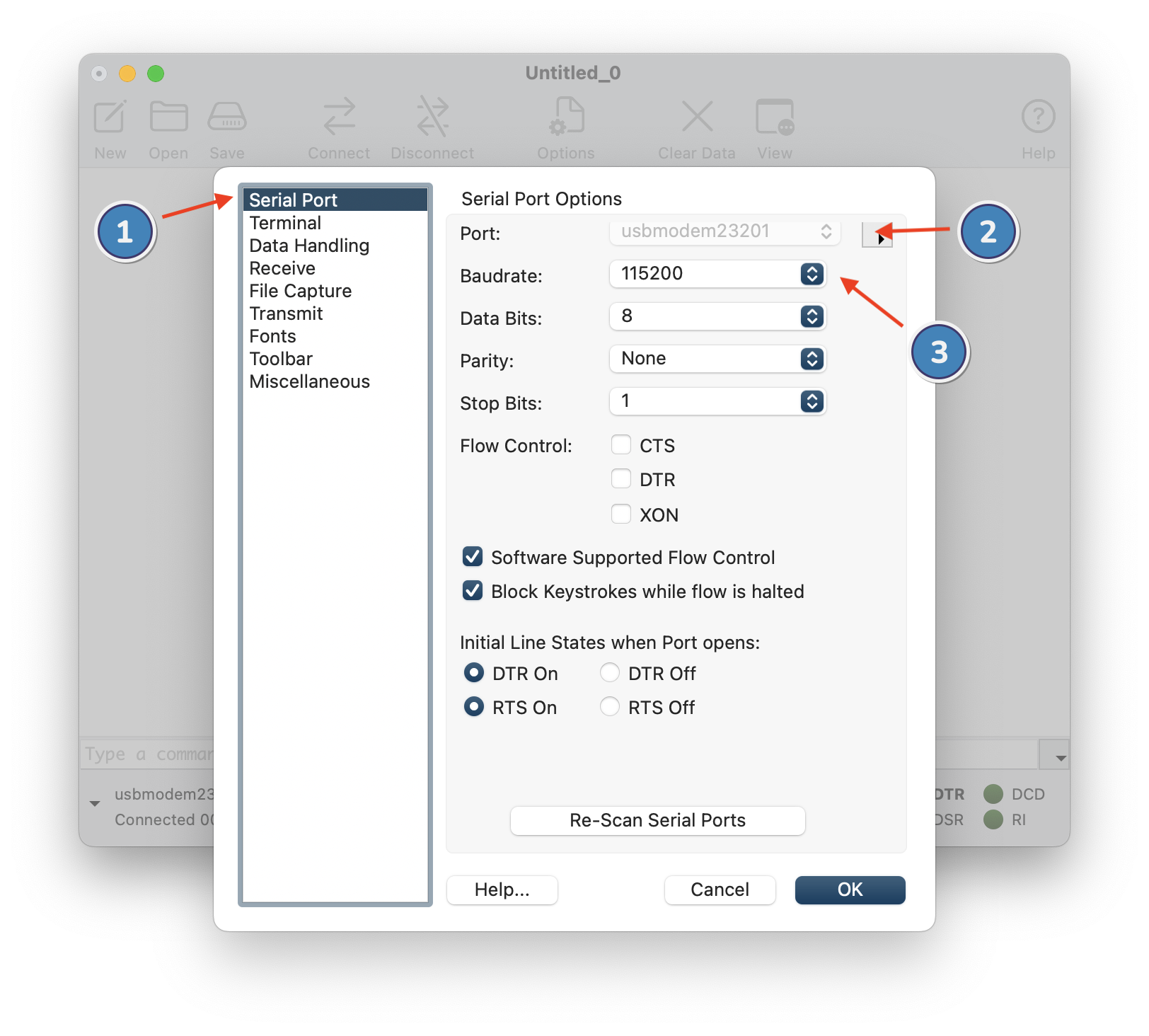
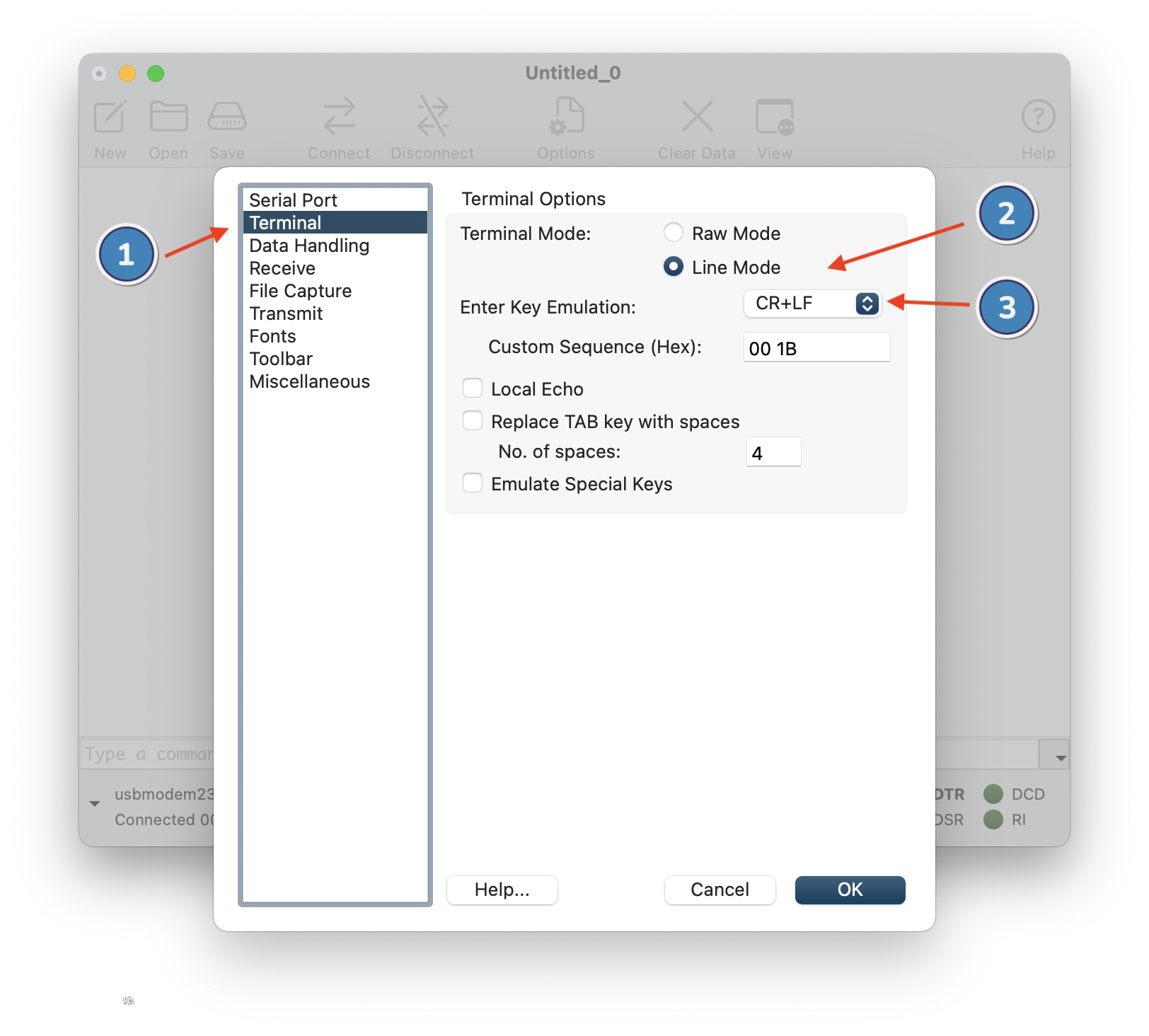
- Open the Terminal section and set the terminal mode to “Line Mode”. Make sure the Enter Key Emulation is set to “CR” or “CR + LF”
- Type your text and press Enter to start the speech
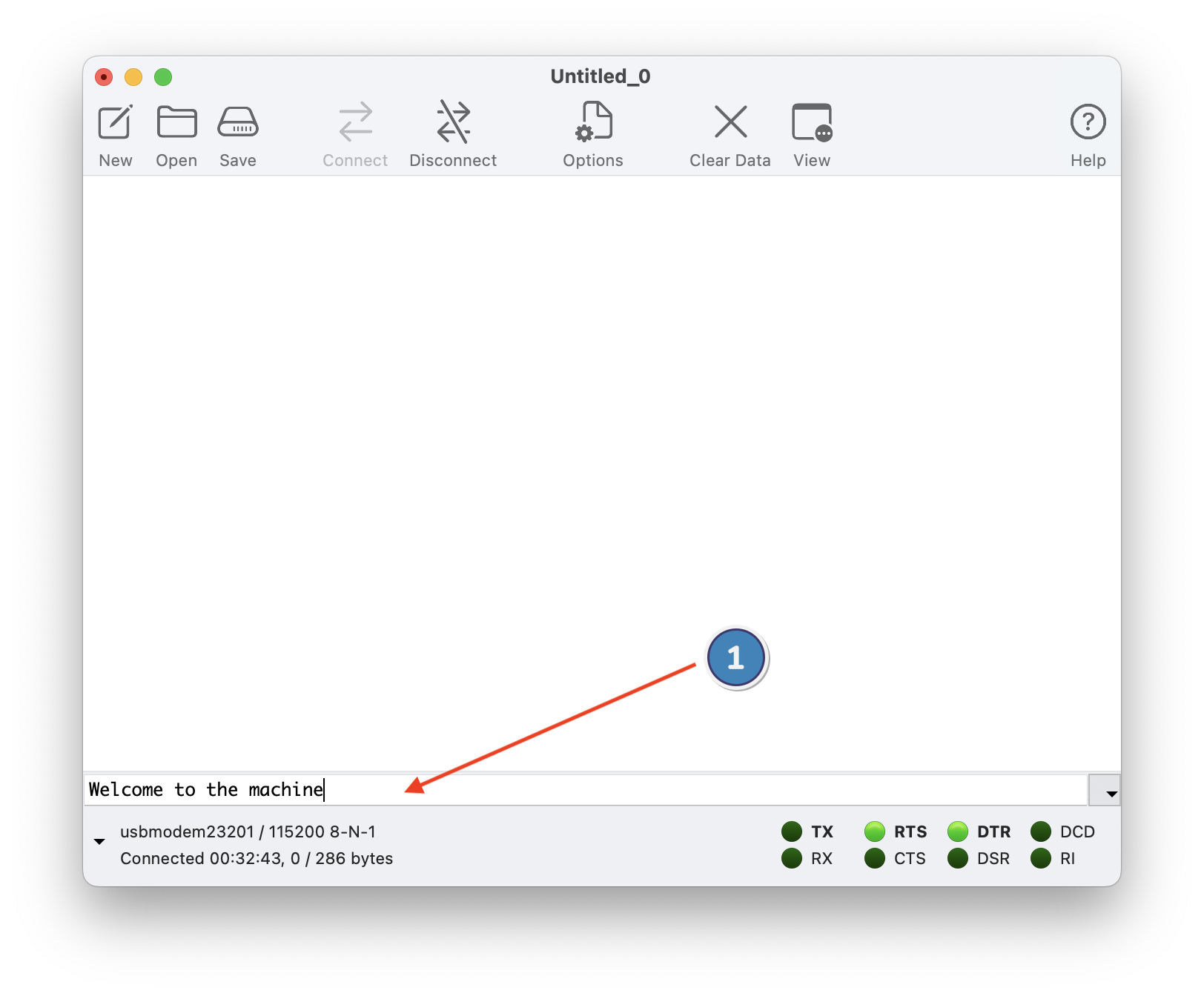
When done: copy the line into a file for later use and transfer it to the SD card.
note: The potentiometer can also be used while in USB TTS mode
P1 Select the voice. This may affect some voice characteristics and overwrite changes done previously with the other potentiometers.
P2 Speed
P3 Formant
P4 Reverb
P5 Expression
SD TTS
Load and read a “.txt” file from the SD card to utilize the Text-to-Speech feature. (A maximum of 20 .txt files can be used.)
Note: Please add an empty line at the end of the file.
If a sentence ends with a period, the pitch will drop at the end of the sentence; a question mark will cause the pitch to rise.
Use the rotary selector to choose a file, and then press the button once to initiate reading. (or use a Gate signal as a trigger)
A double-click while in SD TTS mode will return you to the file selection menu.
Mode
Use the switch to set the mode:
- CV: The sound entry is used to pick the line in the file
- Loop: looping through all the lines in sequence
- Random: accessing the line randomly
Sound: Use it to pick a line from the file
P1 Select the voice. This may affect some voice characteristics and overwrite changes done previously with the other potentiometers.
P2 Speed
P3 Formant
P4 Reverb
P5 Expression
Keyboard
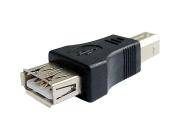
Connect a USB keyboard to the USB port using the gender changer adapter.
⚠️ Do not use this port to power something apart from a standard keyboard.
The maximum current that can be provided is 300 mA.
The busy signal acts as a gate signal which stays up while the keyboard is pressed.
Type the text and press Enter to start the speech. (the Gate and the Button are also active)
Use the Backspace to delete the last character.
Use Escape to erase the string and start over.
Use Tab to save the sentence you are working on to the “keyboard.txt” file and play it back later in the SD TTS mode.
(New sentences are appended to the end of the file)
Phonemes
In Phoneme mode, the rotary selector is utilized to choose a specific group of phonemes.
The available groups include “All,” “Vowels,” “Consonants,” “Pure Vowels,” “Diphthongs,” “Plosives,” “Nasals,” “Fric&Affric” (Fricatives and Affricates), and “Approximants.”
The gate input is designed to trigger the speech.
Mode
The mode of operation can be set using the switch with three distinct positions:
- Upper position for CV mode, where the CV from the Sound jack entry is used to pick the phoneme from the selected group.
- Middle position for Loop mode, cycling through the phonemes of the chosen group.
- Lower position for Random mode, enabling random access to phonemes within the selected group.
The potentiometers offer control similar to the SD TTS mode but with a key variation:
P1 is used to select the voice, affecting certain voice characteristics and potentially overwriting previous adjustments.
P2 controls the speed of the speech.
P3 adjusts the formant.
P4 sets the reverb level.
P5, distinctively in this mode, sets the pitch of the phoneme being synthesized.
Phonemes groups
| Category | Sub-Category | Phonemes |
|---|---|---|
| All Phonemes | The Complete Range | All Phonemes from Vowels and Consonants |
| Vowels | Pure Vowels | A, AA, AE, AH, AX, E, EH, I, IH, IX, IY, O, U, UH, UW |
| Diphthongs | AW, AY, EI, EY, OW, OY, EW | |
| Consonants | Plosives | B, D, G, K, P, T |
| Nasals | M, N, NG, NY | |
| Fricatives and Affricates | F, S, SH, V, Z, ZH, TH, DH, H, CH, J | |
| Approximants | L, R, ER, RR, W, WH, Y, YY |
MIDI
Control your Nexus device via MIDI.
Use the rotary function to select your desired MIDI channel.
The MIDI mode allows you to control and produce speech in one of three ways: by letter, phoneme, or phonetic composition. The mode you’re in depends on the position of the switch.
Note that while “MIDI Note ON” events are supported, “MIDI Note OFF” events will have no effect.
Whenever a MIDI note is received, the green LED will turn on. Whenever speech starts, the red LED will turn on.
Mode: Alphabet (Switch in Upper Position)
In this mode, each MIDI note corresponds to a specific letter: A=C1, B=C2…Z=C#3.
The speech is triggered when the device receives the designated “Speak” note. Special notes are also assigned to adjust Speed, Pitch, and Volume.
Similar to SD TTS mode, if a sentence ends with a period, the pitch drops at the end of the sentence; a question mark will cause the pitch to rise.
Mode: Phoneme (Switch in Middle Position)
In this mode, the phoneme corresponding to the MIDI note is immediately triggered when a “Note On” event occurs. In this mode, prosody marker notes are ignored.
The phoneme’s volume can be adjusted through velocity, which is mapped across 10 distinct levels.
Mode: Phonetic (Switch in Lower Position)
In this mode, phonemes are queued as they are received via MIDI notes. The speech sequence begins when the device receives the designated “Speak” note. Prosody marker notes are also functional in this mode, allowing for enhanced control over speech characteristics like pitch, speed, and volume.
Midi Controllers
Midi controller can also be applied in real-time, once the speech is started, both in Phonetic and Alphabet mode (see the following table)
| Nexus | Range | Controller |
|---|---|---|
| Speed | 0-13 | Modulation wheel CC1 |
| Voice | 0-10 | Breath controller CC2 |
| Reverb | 0-9 | Controller CC3 |
| Formant | 0-99 | Foot pedal CC4 |
| Pitch | 0-99 | Portamento CC5 |
| Expression | 0-9 | Data Entry CC6 |
| Volume | 0-9 | Volume CC7 |
MIDI to Phonemes mapping
| Number | Phoneme | MIDI Note | Example |
|---|---|---|---|
| 0 | A | C1 | das (Spanish) |
| 1 | AA | C#1 | cot |
| 2 | AE | D1 | cat |
| 3 | AH | D#1 | cut |
| 4 | AW | E1 | cow |
| 5 | AX | F1 | bottom |
| 6 | AY | F#1 | bite |
| 7 | B | G1 | bib |
| 8 | CH | G#1 | church |
| 9 | D | A1 | did |
| 10 | DH | A#1 | either |
| 11 | DX | B1 | city |
| 12 | E | C2 | ser (Spanish) |
| 13 | EH | C#2 | bet |
| 14 | EI | D2 | mesa (Spanish) |
| 15 | ER | D#2 | bird |
| 16 | EW | E2 | acteur (French) |
| 17 | EY | F2 | bake |
| 18 | F | F#2 | fee |
| 19 | G | G2 | gag |
| 20 | H | G#2 | he |
| 21 | I | A2 | libro (Spanish) |
| 22 | IH | A#2 | bit |
| 23 | IX | B2 | rabbit |
| 24 | IY | C3 | beet |
| 25 | J | C#3 | age |
| 26 | K | D3 | cute |
| 27 | KX | D#3 | ski |
| 28 | L | E3 | long |
| 29 | M | F3 | me |
| 30 | N | F#3 | new |
| 31 | NG | G3 | rung |
| 32 | NY | G#3 | Niño (Spanish) |
| 33 | O | A3 | no (Spanish) |
| 34 | OW | A#3 | boat |
| 35 | OY | B3 | boy |
| 36 | P | C4 | pop |
| 37 | PX | C#4 | spot |
| 38 | R | D4 | ring |
| 39 | RR | D#4 | tres (Spanish) |
| 40 | S | E4 | sell |
| 41 | SH | F4 | shell |
| 42 | T | F#4 | tin |
| 43 | TH | G4 | thin |
| 44 | TX | G#4 | stick |
| 45 | U | A4 | uno (Spanish) |
| 46 | UH | A#4 | book |
| 47 | UW | B4 | boot |
| 48 | V | C5 | valve |
| 49 | W | C#5 | we |
| 50 | WH | D5 | when |
| 51 | Y | D#5 | mayo (Spanish) |
| 52 | YY | E5 | you |
| 53 | Z | F5 | zoo |
| 54 | ZH | F#5 | vision |
| 55 | SPACE | G5 | variable pause |
| 56 | ? | G#5 | Question |
| 57 | COMMA | A5 | medium pause |
| 58 | PERIOD | A#5 | long pause |
| 59 | Speak | B5 | Start speech in phonetic mode |
| 60 | + Pitch | C6 | Increase pitch |
| 61 | - Pitch | C#6 | Decrease pitch |
| 62 | + Speed | D6 | Increase speed |
| 63 | - Speed | D#6 | Decrease speed |
| 64 | + Volume | E6 | Increase volume |
| 65 | - Volume | F6 | Decrease volume |

Nexus Phonemes MIDI effect rack for Ableton Live
Nexus Alphabet MIDI effect rack for Ableton Live

Code
Code Display code version
Calibration pot calibration
Flasher Firmware loader: pick a firmware and reboot
Nexus voices
The text-to-speech synthesizer has 11 standard voices, and several individual voice parameter controls that can be used to vary the voice characteristics independently. The Voice command alters numerous internal voice parameters (articulation, pitch, expression, tone, etc.) and should precede any individual voice parameter control commands.| N | Voice Name |
|---|---|
| 0 | Perfect Paul (default) |
| 1 | Vader |
| 2 | Big Bob |
| 3 | Precise Pete |
| 4 | Ricochet Randy |
| 5 | Biff |
| 6 | Skip |
| 7 | Robo Robert |
| 8 | Goliath |
| 9 | Alvin |
| 10 | Gretchen |
Nexus commands
Use the $ symbol to add a command in your text and modify the behavior of the TTS synthesizer.You don't need to repeat a command for each line of your text, as it remembers the last command sent.
| Command | Function | n Range | n Default | Example |
|---|---|---|---|---|
| nA | Articulation | 0-9 | 5 | |
| C | Character mode | - | ||
| D | Phoneme mode | - | - | $Dk ax m p yy uw dx er |
| nE | Expression | 0-9 | 5 | |
| nJaaaabbbb | Sinusoidal tone generator | 1-59999 | - | $50j10001000 |
| nF | Formant frequency | 0-99 | 50 | |
| nP | Pitch | 0-99 | 50 | |
| nO | Voice | 0-10 | 0 | $9ohello |
| nS | Speed | 0-13 | 5 | $2S |
| nV | Volume | 0-9 | 5 | |
| nR | Reverb | 0-9 | 0 | |
| T | Text mode | - | - | |
| n* | DTMF | 0-16 | - | $2*$9*$5*$6*$9*$5* |
| M | Monotone | - | - |
Commands examples
$0o I am perfect Paul
$1o $2s I am Vader and I speek slowly
$2o $9s I am Big Bob and I speek fast
$2v low volume
$C IBM TNT FDA LOL RST
$t $5v back to normal
100 hertz $80j01000100
200 hertz $80j02000200
500 hertz $80j05000500
1000 hertz $80j10001000
$50j02000450
$2*$9*$5*$6*$9*$5*
Phonetic examples
$d50-- k /o m\ p yy /uw \t er \l <i -------b
$d30 harder, /behter, /faester, \stronger
$dt r a n /s i \\----u m a n
$D d i`m eh n ch' m a \sh ---i ---n
$dv i rr' s i n d' d i r o b o t e ---r
$do r d i n a t /er \ay n d i v i d \u e l
$dtekn----o'/p------ap
$d$2s i sh b i n m ay n e m \a sh i ---n
$dm/iusike' ---ehlektr\own---ik
Nexus Phoneme Symbols
| Phoneme | Example | Phoneme | Example |
|---|---|---|---|
| A | das (Spanish) | N | new |
| AA | cot | NG | rung |
| AE | cat | NY | Niño (Spanish) |
| AH | cut | O | no (Spanish) |
| AW | cow | OW | boat |
| AX | bottom | OY | boy |
| AY | bite | P | pop |
| B | bib | PX | spot |
| CH | church | R | ring |
| D | did | RR | tres (Spanish) |
| DH | either | S | sell |
| DX | city | SH | shell |
| E | ser (Spanish) | T | tin |
| EH | bet | TH | thin |
| EI | mesa (Spanish) | TX | stick |
| ER | bird | U | uno (Spanish) |
| EW | acteur (French) | UH | book |
| EY | bake | UW | boot |
| F | fee | V | valve |
| G | gag | W | we |
| H | he | WH | when |
| I | libro (Spanish) | Y | mayo (Spanish) |
| IH | bit | YY | you |
| IX | rabbit | Z | zoo |
| IY | beet | ZH | vision |
| J | age | space | variable pause |
| K | cute | ' (apostrophe) | short pause |
| KX | ski | , (comma) | medium pause |
| L | long | . (period) | long pause |
| M | me |
Nexus Prosody
| Symbol | Function |
|---|---|
| nn | Set pitch to nn |
| / | Increase pitch |
| \ | Decrease pitch |
| + | Increase speed |
| - | Decrease speed |
| > | Increase volume |
| < | Decrease volume |
