Real-time control of speed, pitch, voice, reverb, volume
CV control
Voices (11)
Speed
Formant
Reverb
Expression
Pitch (in Phoneme and MIDI mode)
These controls can be applied in real time while speaking!
Inline commands
The text string can contain commands to adjust the voice on the fly
$1o $2s I am Vader and I speak slowly
Phonetic to speech
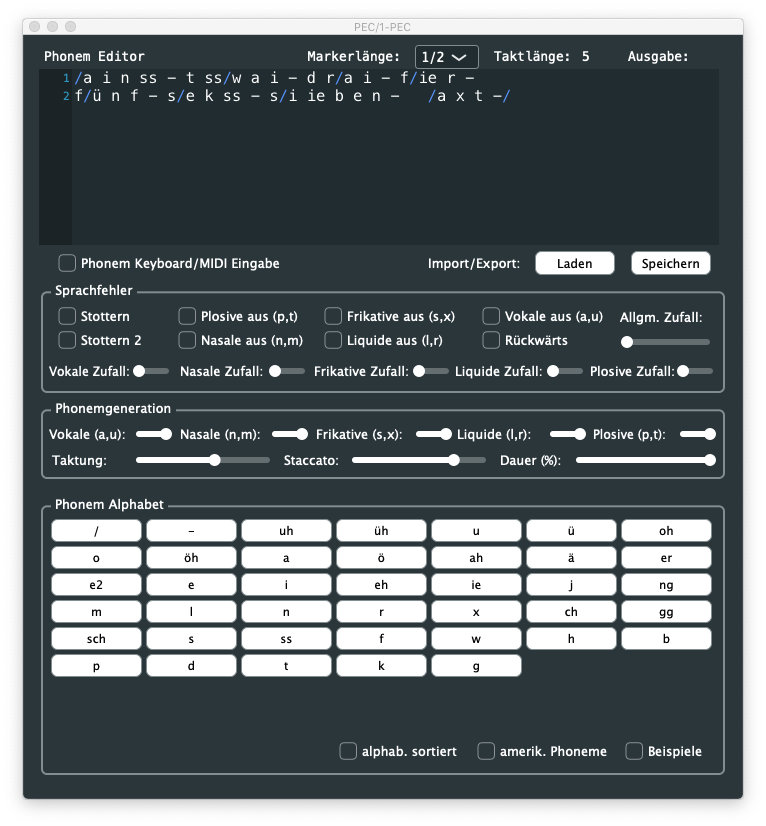
The speech can also be generated by stringing phonemes and prosody to control the pitch, speed, and volume.
k ax m p yy uw dx er
Computer

//h aw -/d>/eh r +<\yy uw s p iy k t uw m iy dh ae t -w ey .+/
How dare you speak to me that way!

/ increase pitch. + inscrease speed > increase volume
 decrease pitch. - decrease speed < decrease volume
Phonemes mode
Allows for the easy selection of fundamental phoneme groups, such as “Vowels” and “Consonants,” and provides straightforward controls for pitch and speed adjustments.
While providing fundamental control over pitch and speed, it’s a straightforward function ideal for those just starting their journey in speech synthesis and sound exploration.
This requires just a gate signal to get started…
Latency
From the Gate signal to the start of the speech, the latency is relatively tiny: 30 ms to 80 ms.
MIDI
Full MIDI control over the voice characteristics.
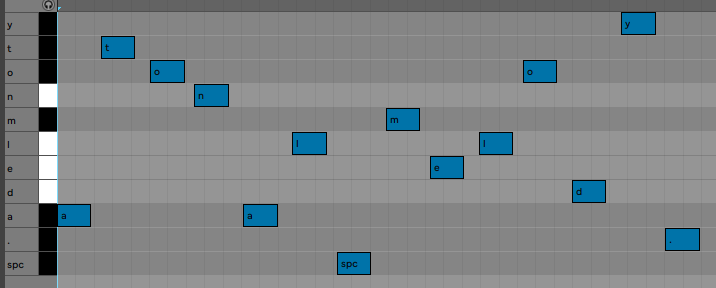
Phonetic, Phoneme or Text to speech from MIDI notes.
Read texts from the micro SD card in plain English.
The sound produced by S.A.M is a robotic, monotone voice with a slightly metallic quality.
The user can adjust the Pitch, Speed, Mouth, and Throat.
Note that the code is blocking, and the potentiometer positions are read during the pauses between utterances.
(only the Rate P1 can be used in real-time)
SAM User Manual
1. Revision history
Firmware version:
0.1 2022-10-23 : first release
1.0 2026-05-27 : adding keyboard support
The code is blocking: user input is only possible during silence. Only P1 can work while speaking.
2. Main Menu
P1 Rate: real-time control. It plays nicely with an LFO signal and can almost produce a ring-modulator effect.
P2 Speed
P3 Pitch
P4 Mouth
P5 Throat
2.1. Numbers
Says random digits. This is useful for quickly setting the voice parameters.
The Gate input is not used in this mode.
2.2. SD TTS
Please add an empty line at the end of your text file.
Double-click to go back to the file selection menu.
Add punctuation, such as a period, at the end of your text.
Speech starts when the Gate signal goes high.
You can also start speech by pressing the function button.
Switch modes
Upper position: CV control of the line with P6.
Middle position: loops through the text file.
Lower position: random access to the file.
2.3. Keyboard
Connect a USB keyboard and select Keyboard from the main menu.
Type text directly from the USB keyboard.
Press Enter to speak the current sentence with the current SAM settings.
Press Escape to clear the text buffer.
Use Backspace and Delete to edit the text.
Use the cursor keys to move inside the text.
Press Tab to append the current sentence to keyboard.txt on the SD card.
The saved file uses the same simple structure as the SD TTS files: one sentence per line. If the typed sentence does not end with ., !, or ?, the firmware adds a final period when saving.
The cursor shown on the display is visual only and is not saved to the text file.
2.4. Code
2.4.1. Version
Displays the code version.
2.4.2. Calibration
Pot calibration.
2.4.3. Flasher
Firmware loader: pick a firmware file and reboot.
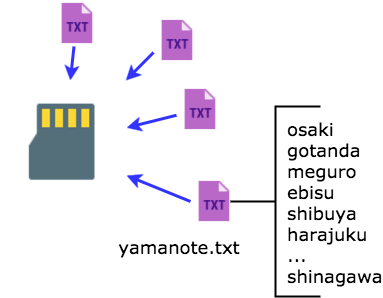
SAM can read .txt file
You can try this file as an example.
Proceed like a purchase (this is a Free downloadable product)
Save it on the SD card with a name like “SAM.bin,” and you can load it from the code>flash menu.
The same applies to the EMY, Mea, Kaiwa, Sino & Vax firmware so that you can switch from one to another within the main menu.
This function copies the firmware to “firmware.bin” and reboots the system. It will delete the firmware.bin but keep the original firmware on the card with its own name.
It generates speech from plain English or Chinese by reading files on the microSD card.
Timing
Real-time
The various voice parameters are applied just before triggering the speech and are ineffective while speaking.
They are applied to the next utterance. The best is to fiddle a bit with the knobs for the desired effects.
While playing with the interface, the display shows the parameters changes.
Robovox’s design is inspired by the Patent “System for and method of synthesizing singing in real-time” filed on 03.05.90 by Florian Schneider, Gert Joachim Ott, and Gert Jalass.
It describes a musical instrument that can produce a speech and sing in real-time via MIDI controls. A magical speech synthesizer chip lives at the heart of the instrument: the Votrax SC-02 invented by Richard T. Gagnon. The Votrax SC-02 chip can generate speech by stringing phonemes together. The Votrax SC-02 contains registers that allow software control of the speech rate, pitch, pitch movement rate, amplitude, articulation rate, vocal tract filter, and of course, phoneme selection. Most of these functions are implemented in the MIDI control software.
In Robovox, we also implemented an undocumented function of the chip: the internal audio carrier can be replaced by an external one to produce vocoder-like effects. The result is simply excellent. You can also use this feature as an effect to apply to the carrier! Check this demo where I play with the pitch of the external carrier with a Genki ring (@ 0:48) (sorry for the lousy audio -video sync)
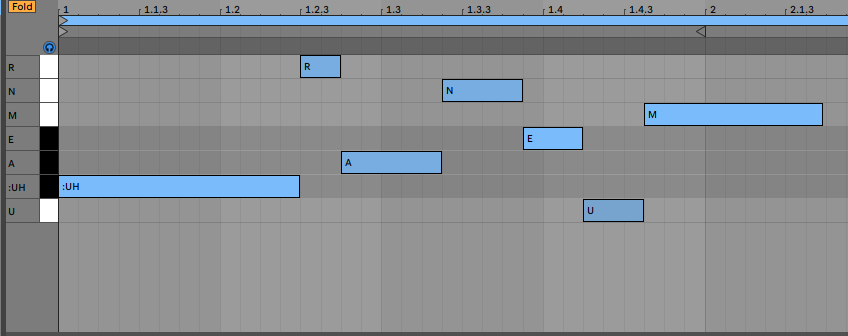
MIDI note ON note OFF mapped to the SC02’s phonemes
Velocity
Pitch (coarse control by clocking the chip)
CC2 Note Pitch (fine control using the chip inflection/pitch register)
Mod Wheel mapped to filter
CC 64 sustain ON/OFF to choose between the internal and external carrier
Emy / Terminal EMY Firmware
The code runs on Terminal or Emy. It comes in 2 versions, depending on how you want to sequence it. You can drive it either as a USB MIDI instrument or via a classic MIDI serial TRS connector. The code also allows CV controls so it can be used in a Eurorack setting
Here are a few Kraftwerk covers made by Andrew Shaw. These are astonishing variants of the original ones: respectful to the original songs but with their specificities or identities.
Andrew is using the Robovox precisely as Kraftwerk used to do: first by finding the correct phonemes to be uttered, then launching them in perfect timing and duration, and finally tuning the pitch to have the chip sing in tune! ( all parameters sent live to the Robovox from within the DAW)
The casing allows adding any of the Vox modules inside just by removing four screws.
As with Emy, Terminal can be used in a CV-controlled environment or act as a MIDI instrument.
You can install the various firmware on the SD card before powering the device.
A pair of shunts allows the user to connect Terminal either as a MIDI USB unit or as a host for a USB keyboard for text entry.
On request, a serial TRS jack MIDI Type B connector can also be added. (note: not all firmware are supporting MIDI yet. MIDI support is under development)
100 % Emy compatible, including adding additional voices USB port for power or MIDI or USB connection Optional TRS jack MIDI Type B connector USB host connector for computer keyboard Shunts (must be removed when connecting a keyboard, otherwise, they must be placed vertically) Line in & out stereo jack 1/4″ (line in only used for the Robovox module) Trimpot to adjust the audio level input (only used for the Robovox module)
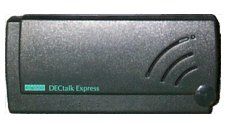
Dectalk was a speech synthesizer and text-to-speech technology developed by Digital Equipment Corporation in 1984, mainly based on the work of Dennis Klatt at MIT.
The Dectalk Express what connected to the serial port and would speak what was being “printed.”
The synthesizer can process text and produce speech with nine different voices. The Dectalk engine includes a parser that gives users fine control over the synthesized speech’s quality, pitch, and intonation. Dectalk can also be programmed to play phonemes and sing with quite a realistic expression.
The command syntax for musical coding sequences is:
[phoneme<duration, pitch number
Timing
Latency
There is a latency of 200 ms between the trigger and the start of the speech. This latency is very consistent, allowing the speech to stay in the tempo even if not precisely on the beat. The firmware uses the gate going down to stop the speech, preparing the chip for the next utterance, so when sequencing some stutter-like speech in a loop, they still fire up in sync with the tempo.
Real-time The various voice parameters are applied just before triggering the speech and are ineffective while speaking. They are applied to the next utterance. The best is to fiddle a bit with the knobs for the desired effects.
note: the hyphen is used to prolong the vowels (see the Kaiwa-vox’s manual for more on this)
Workflow
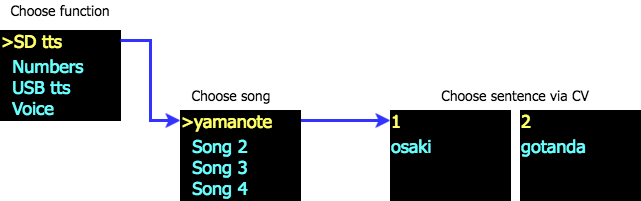
Group your lines into a song and save it as a text file on the SD card :
On Kaiwa, manually pick a song and use the Sound pot or its CV entry to pick the line in that song.
A gate signal will trigger the sound while the various pot and CV entries allow tweaking the voice characteristics before processing the speech (not in real-time, but they are applied on the next utterance).
This little demo to shows how to use the USB TTS mode on Kaiwa. This function is designed to help you debug your Japanese romaji lines before storing them into a text file for the SD card. (see the user manual for more details).
The speech is triggered by the gate signal, so this mode can also be used to edit and play live text.
Midi notes are named to match Mea's 40 phonemes. (See MIDI mode in the manual)
...
Login is required to access this page
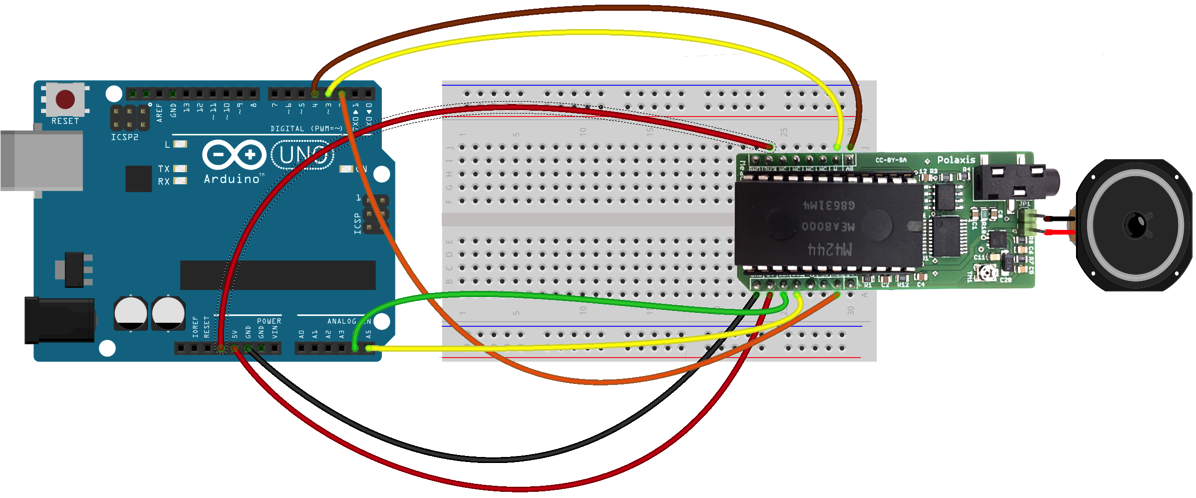
Use with a microcontroller
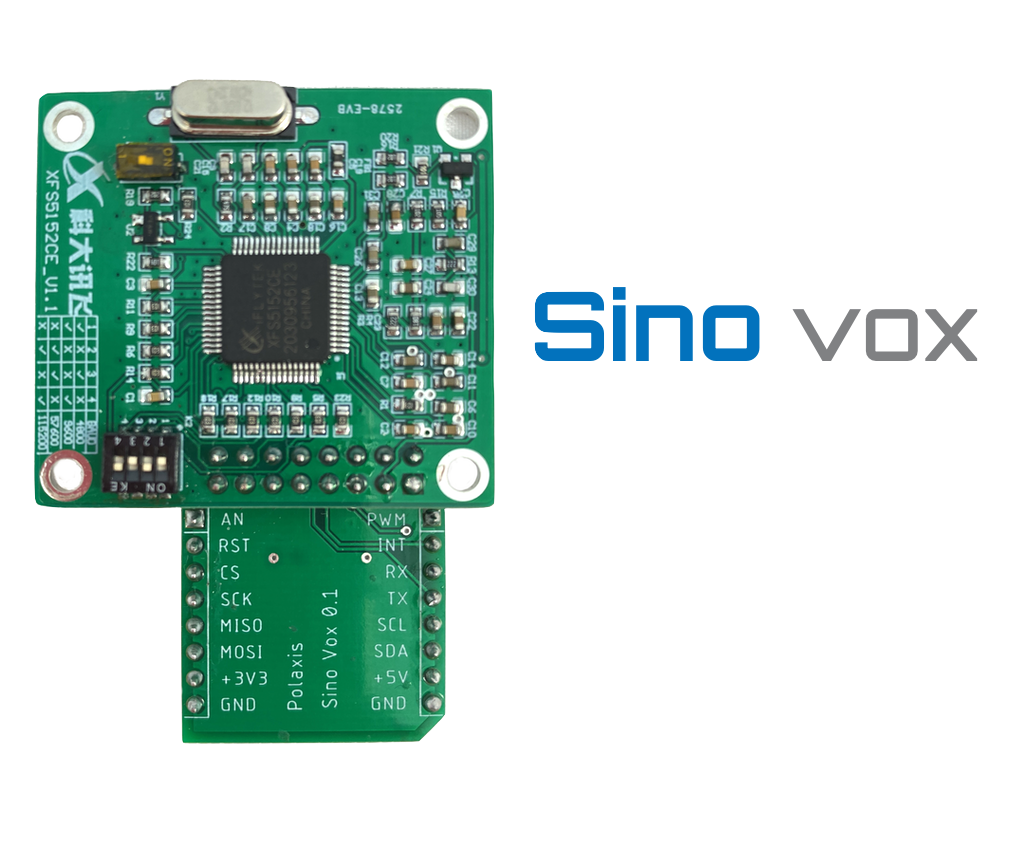
The hardware is compatible with the mikroBUSTM standard, allowing rapid prototyping and easy integration into existing projects.
The onboard class-d amplifier can drive a small 8 ohms speaker.
This vox board was designed to be used with EMY and its appropriate firmware. (in this case, the audio signal is forwarded via the “PWM” pin – the jack is not used with Emy)
It can also be used in robots, toys, or any other retrocomputing speaking devices you may think of.
Thanks to the popular mikroBUS™, this board can be instantly connected to multiple different platforms like the Arduino, the STMT32 of the Clicker2.
The onboard amplifier is quite powerful and is just waiting for the speaker to be plugged in!
The chip can string phonemes to produce quite realistic speech (although with a French accent). It can also sustain notes for a nice singing effect. Here is how the Arduino code looks like :
dire("/bonj+w_r");
delay(400);
dire("&l&kt€Ronik miwzik");
delay(400);
dire("i$ b+i-n ka+I+n -ma/$=+_ine");
delay(400);
dire("+?je pE ossi murmur*?");
delay(400);
dire("je suis un arduino qui parle"); // à corriger ;-)
delay(400);
You will find more information about the various phonemes and the prosodic markers in the following manual.




 100 % Emy compatible, including adding additional voices