Teletype
Hands-on MIDI control for Kraftor
Teletype puts five keys and four knobs within reach of your next synthetic voice performance. Designed as a compact companion for Kraftor, it lets you trigger sounds, recall phrases and adjust voice parameters through MIDI.
Two slide switches select four banks, giving you 20 assignable note slots across the five keys. Each knob can send a MIDI Control Change message or pitch bend. Choose your mappings in the browser configuration app and save them on the controller.
Play your voice engine

For a live speech setup, assign five keys to the MIDI notes that trigger your chosen phonemes, allophones or stored phrases. Switch banks to reach another set of five. Map the knobs to supported parameters such as pitch, speed or modulation, then shape the voice as you play. Available sounds and parameters depend on the voice board and firmware installed in Kraftor.
Connect Teletype’s 3.5 mm TRS MIDI output to Kraftor’s Type B MIDI input with a suitable cable, and power both devices by USB. Once your mappings are saved, a computer is not needed for performance.
Five keys, four knobs, your mappings
- 5 hinged keys: assign a MIDI note to each key in each of the four banks.
- 2 bank switches: select one of four banks, for 20 note assignments in total.
- 4 knobs: individually assign MIDI CC or pitch bend.
- USB MIDI and TRS MIDI output: control compatible software or hardware instruments.
- Independent MIDI channels: choose one channel for the keys and another for the knobs, each from 1 to 16. Both groups can also use the same channel.
- Browser configuration: choose your mappings in Chrome or Edge and save them on Teletype.
- USB-C power: in a 3D-printed enclosure, available in seven colours.
The keys send short note triggers. Holding a key does not sustain a note. Teletype is a MIDI controller and produces no sound on its own.
Configure, save, then play
Use the Configure tab in the browser interface to assign notes, knob functions and MIDI channels, then save your settings on Teletype. Saved settings are retained when the power is turned off. After setup, you can close the interface and play without it. For hardware control through TRS MIDI, no computer is needed: power Teletype by USB and connect it to your MIDI instrument.
The optional Monitor view shows incoming MIDI messages and knob values while you play. Reopen the app whenever you want to change your settings or see this feedback.

Beyond Kraftor
Use Teletype with a DAW, sampler or another MIDI instrument that responds to note triggers, CC messages or pitch bend. Match the receiving instrument’s MIDI channel and mappings to the controls you want to use.
Firmware, configuration and documentation
Open the Teletype browser interface in Chrome or Edge to configure your controller or monitor incoming MIDI. Source code, setup instructions and build documentation are available in the TeleTypeController GitHub repository.
Update without compiling
Download Teletype v1.0.1 UF2 firmware, then open the RP2040 browser firmware uploader in Chrome or Edge and follow its steps. No compilation is required. Use the Teletype firmware file for this controller.
If you prefer to build the firmware yourself, follow the instructions in the GitHub repository above.
Choose your colour
Available in red, beige, black, white, blue, green and orange. Select your preferred colour when ordering. The product photos show the blue version.
Weight and dispatch
Product weight: 160 g. Ships from Belgium.
Design credits
The key and hinge geometry was inspired by Adafruit’s USB MIDI Keyset by the Ruiz Brothers and remodelled for Teletype. Teletype is a Polaxis product.
Talko 2 Eurorack
Description
Talko2 is a compact, DIY-friendly Eurorack speech module built on the same proven engine used across the Polaxis lineup.
In homage to Error Instruments, the glitch button is named Error, unlocking wild and unpredictable textures.
It speaks numbers, alphabets, phonemes, and classic phrase banks, all with real-time control over pitch, speed, and effects.
A 7-segment display shows the active bank or the selected effect.
Designed for experimental voices and robotic sound design, Talko2 is both a classic speech engine and a versatile creative tool.
Technical details
- Firmware update: UF2 drag-and-drop over USB-C data cable.
- Current consumption: ~20 mA.
- Power: Eurorack 10-pin power header (standard ±12 V)
- Protected Inputs: Protected with resistors and clamping diodes.
- Eurorack width: 91 mm (≈ 18 HP).
Quick Start
- Connect the audio output to your mixer or modular system.
- Patch a gate signal into the Gate input (or press the Gate button)
- Turn the Encoder to select a speech bank (shown on the 7-segment display).
- Use the Sound knob to pick the item (digit, letter, word, phoneme).
- Adjust Speed and Pitch to taste.
- Push the encoder and turn it to select an effect, and use the FX knob to adjust its depth


Media
6 way jack connector
Passive 6-Way Signal Distributor for Mono signals
Usb to jack 2.1 power cable
0.5m power cable to power the Bricky modules from a USB bank or a power supply
Talko 2 Bricky
Description
This module directly benefits from all these developments: a compact, DIY-friendly design, available both as a Eurorack module and as a standalone “Bricky” format inspired by Error Instruments. In homage, the glitch button has been renamed Error.
It speaks numbers, alphabets, phonemes, and classic phrase banks, with real-time pitch, speed, and effect controls.
A 7-segment display shows the active bank or the effect applied.
Designed for experimental voices and robotic textures,
Talko2 is both a classic speech engine and a sound-design tool.
Technical details
- Firmware update: UF2 drag-and-drop over USB-C data cable.
- Current consumption: ~35 mA at 5V.
- Power: 2.1 mm power jack (5-12V), positive at the center
- Protected Inputs: Protected with resistors and clamping diodes.
- Eurorack width: 91 mm (≈ 18 HP).
Quick Start
- Connect the audio output to your mixer or modular system.
- Patch a gate signal into the Gate input (or press the Gate button)
- Turn the Encoder to select a speech bank (shown on the 7-segment display).
- Use the Sound knob to pick the item (digit, letter, word, phoneme).
- Adjust Speed and Pitch to taste.
- Push the encoder and turn it to select an effect, and use the FX knob to adjust its depth

Media
Kraftor Performer
Kraftor Performer product specifications
Standalone speech-synthesis instrument: Nexus Old-school voice synthesis with NFC “diskette” loading, USB keyboard entry, and optional MIDI control. No computer is required on stage for the full standalone workflow.
What it does
- Real-time text-to-speech, standalone – Type on a connected USB keyboard and press Enter to speak, or load prewritten lines from an NFC tag and trigger them from the front panel.
- Live performance controls – Pitch and speed are adjustable in real time, including while a phrase is playing. A bank selector and five buttons give 20 sentence slots: 5 buttons across 4 banks. Button presses are ignored while the unit is already speaking for cleaner live behavior.
- NFC as set-list media – Place a tag on the reader. Reads can take up to a few seconds. Line 1 is the title shown on the display; the following lines become the loaded phrases for buttons and MIDI mapping.
- Multiple voices – Select voices with keyboard function keys F1-F10, including voices such as Perfect Paul, Vader, Big Bob, and others. See the user manual for the full list. Voice changes can be issued even while speaking.
Hardware interface, typical stage build
- NFC reader – Top or side placement depending on the enclosure.
- Two potentiometers – Pitch and speed. At power-up, move each knob once so the device learns its position. Loading a new NFC tag does not reset pitch or speed.
- Bank selector – Four positions.
- Five tactile buttons – Sentence triggers across banks.
Configurable build options
Regarding the build, Kraftor Performer can be customized to fit different stages and installation needs:
-
-
- Display – The size and type of display can be chosen to match the application, including a larger display for easier reading during concerts.
- Front-panel controls – The number and type of controls can be configured, including knobs, buttons, bank selectors, and other performance controls depending on the desired workflow.
- Materials and colour – The build can be adapted in terms of materials, finish, and colour.
- Standalone vs. MIDI balance – The instrument can be configured as a more self-contained standalone unit, a more minimal MIDI-controlled unit, or a hybrid of both.
- Display – The size and type of display can be chosen to match the application, including a larger display for easier reading during concerts.
- Front-panel controls – The number and type of controls can be configured, including knobs, buttons, bank selectors, and other performance controls depending on the desired workflow.
- Materials and colour – The build can be adapted in terms of materials, finish, and colour.
- Standalone vs. MIDI balance – The instrument can be configured as a more self-contained standalone unit, a more minimal MIDI-controlled unit, or a hybrid of both.
- Hardware design – The hardware can be built as an evolving modular tile system, inspired by Xavier Garcia at Hackin’Toys and by the reusable, interchangeable design principles of OpenStructures. Controls, labels, display area, blank plates, and utility modules can be arranged around the performer’s workflow, then adapted later for a new stage setup, repair, upgrade, or visual identity.
-
Nexus Vox
Features
- Converts any ASCII text into speech automatically
-
Real-time control of speed, pitch, voice, reverb, volume
CV control
- Voices (11)
- Speed
- Formant
- Reverb
- Expression
- Pitch (in Phoneme and MIDI mode)
These controls can be applied in real time while speaking!
Inline commands
The text string can contain commands to adjust the voice on the fly
$1o $2s I am Vader and I speak slowly
Phonetic to speech
The speech can also be generated by stringing phonemes and prosody to control the pitch, speed, and volume.
k ax m p yy uw dx er
Computer

//h aw -/d>/eh r +<\yy uw s p iy k t uw m iy dh ae t -w ey .+/
How dare you speak to me that way!

/ increase pitch. + inscrease speed > increase volume
 decrease pitch. - decrease speed < decrease volume
Phonemes mode
Allows for the easy selection of fundamental phoneme groups, such as “Vowels” and “Consonants,” and provides straightforward controls for pitch and speed adjustments.
While providing fundamental control over pitch and speed, it’s a straightforward function ideal for those just starting their journey in speech synthesis and sound exploration.
This requires just a gate signal to get started…
Latency
From the Gate signal to the start of the speech, the latency is relatively tiny: 30 ms to 80 ms.
MIDI
Full MIDI control over the voice characteristics.
Phonetic, Phoneme or Text to speech from MIDI notes.


Nexus Alphabet MIDI effect rack for Ableton Live
1 file(s) 12.33 KB
Login is required to access this page
Nexus Phonemes MIDI effect rack for Ableton Live
1 file(s) 12.33 KB
Login is required to access this page
Firmware

Text files

Phonetics 0.32 KB 34 downloads
Check this file showing how to use the phonetics commands Nexus Phoneme Symbols PhonemeExamplePhonemeExample Adas...Login is required to access this page
Commands 0.28 KB 29 downloads
Text with embedded commands Nexus commands Use the $ symbol to add a command in your...Login is required to access this page
Nexus Manual for Emy/Terminal
Stand alone
You can easily connect Nexus to your preferred microcontroller (here the Raspberry Pi Pico) using a simple serial interface.
Click the image below to learn more

Media
Polyglot
Please make sure to orient the plug PCB correctly on EMY with the white marking on the top:
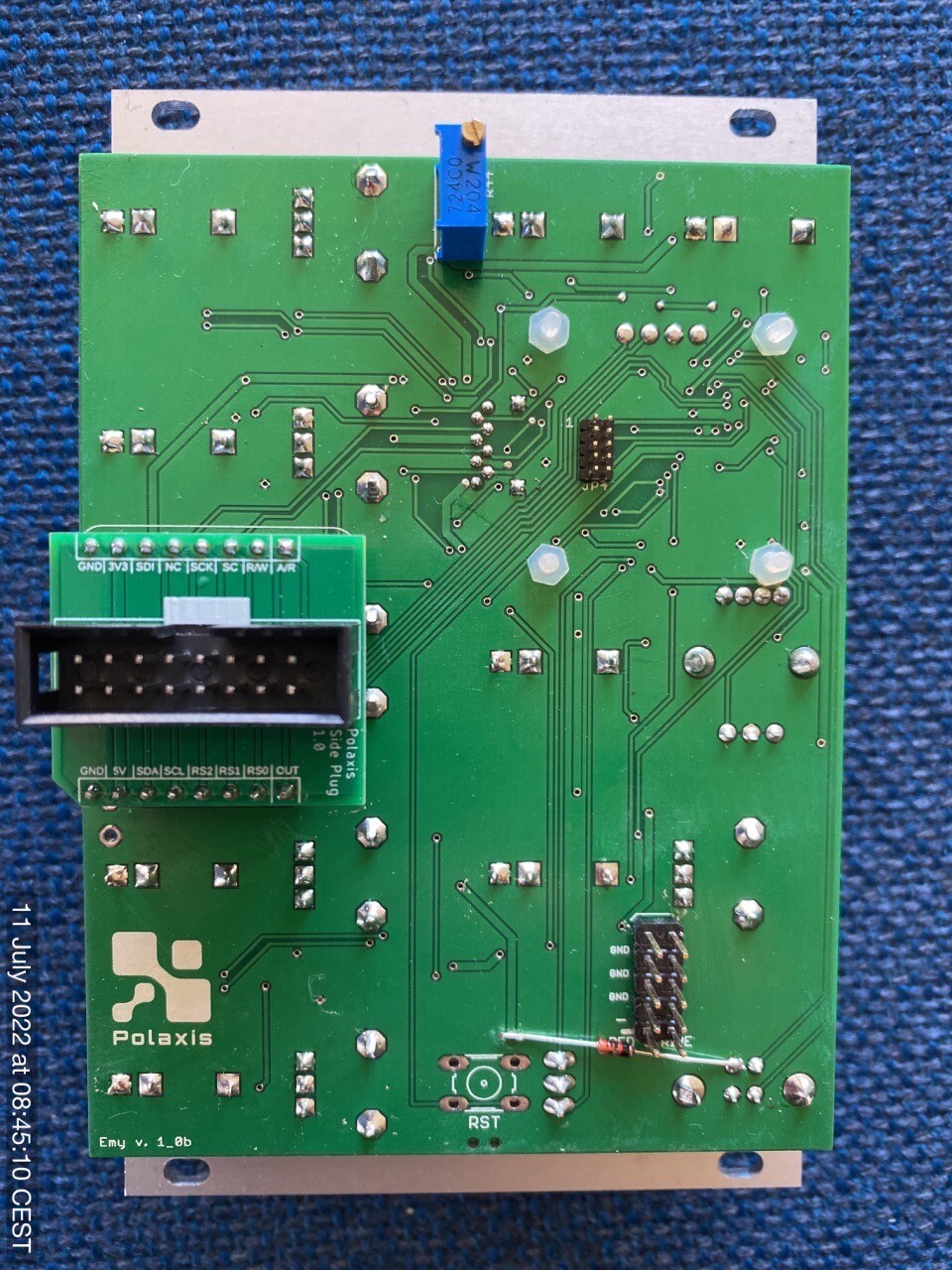
Polyglot Kit Assembly Procedure
SPO vox
This board host the vintage General Instruments SP0256-AL2 aka SPO256-AL2 Narrator. This IC was very popular in the 1980s.
The SPO256-AL2 produces all 59 phonemes of the English language. They can be sustained to generate signing.
It has a very recognizable 8-bit metallic sound.
These phonemes are individually addressable and can be chained together to create words or small sentences.
Our board adds two absent functions on the chip: pitch or inflection control and volume control.
The chip allows looping the last phoneme to generate interesting noise or steady MIDI notes.
MIDI control
- MIDI note ON (first phoneme on note 36)
- MIDI note OFF
- Pitch Bend (can be used while the note is ON)
- Velocity
- Volume CC1 (can be used while the note is ON)
CV control
- Phoneme
- Volume
- Pitch
Custom vocabulary
Build your own vocabulary by stringing allophones together in the following syntax :
(note the + marker to extend the duration of the allophone)
music: MM YY1 UW2 +600 ZZ IH +400 KK1
ZERO: ZZ YR OW
ONE: WW AX AX NN1
technology: TT1 EH KK1 NN1 AA +100 LL AX +400 JH IY
electronic: IH IH LL EH KK1 TT1 RR2 AA +200 NN1 IH +200 KK1
Firmware
Vocabulary
135.000 words to get you started …

Ableton MIDI effect rack

SPO manual for Emy/terminal
![QR Code]()
SPO manual for Emy/terminal
Media
Custom Synthetic Voice file
I will produce a WAV or LPC file of a customized sentence made by synthetic voices and do one iteration.
Talko 1 DIY
This module is performing real-time LPC synthesis to produce intelligible voice or … not if you choose to.
The module produces sounds in 3 major modes : Speech, Repeat and VCO.
Talko is an Arduino-based synthesiser developed under open-source hardware and software. (license CC-BY-SA)
Its firmware can be updated via the onboard USB port.
Please note that building & coding this module requires minimum Arduino knowledge like installing a com port, installing libraries & uploading code.
Technical details
– format: Eurorack
– width: 10hp
– depth: 30 mm skiff friendly
– power: + 12V: 65 mA via 10 pin Doepfer power bus
– audio : un-filtered 5V PWM carrier at 62500 Hz
– inputs: protected against over or under voltage by clipping from 0 to +5V
Assembly
The kit contains everything you need to build your own Talko 1.2 : the panel, the PCB, the components, the knobs and the power cable.
The kits include a populated PCB with all SMD installed .
The bootloader is already flashed to the ATmega338p.
The assembly manual can be found here : https://github.com/deladriere/euro-modules/wiki/Assemble-Talko
User Manual
The user manual can be found here : https://www.polaxis.be/wp-content/uploads/2016/05/Talko-Manual-1_2.pdf
Technical support
https://github.com/deladriere/euro-modules/tree/master/Talko